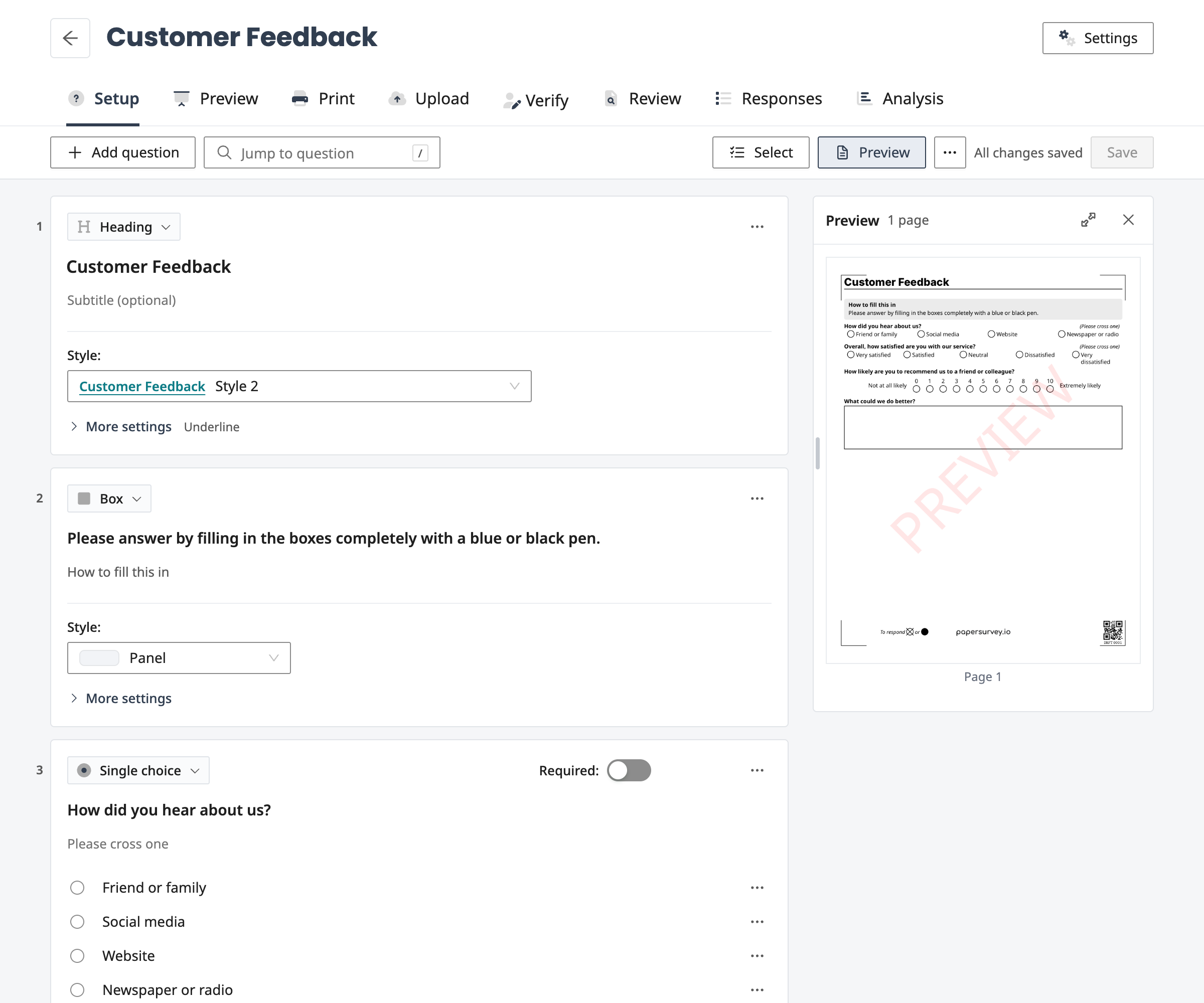
You build a survey's questions on its Setup tab. Every question is a card that shows what respondents read, and you edit its text and answers right on the card. A toolbar above the cards holds what applies to the whole survey.
If you used PaperSurvey before the question editor was redesigned, your surveys have not changed. The editor shows the same questions and settings and saves them the same way; only the controls moved. The first table below says where each one went, and the last section explains how to switch back to the classic editor.
What moved where
| In the classic editor | In the question editor |
|---|---|
| Save in the sidebar | Save at the right end of the toolbar, or Cmd+S on a Mac and Ctrl+S on Windows |
| Add new question under the last question, and the quick inserts between questions | Add question in the toolbar or under the last question, or the + that appears when you point between two questions |
| Add from Survey | Import from another survey… at the bottom of the question picker, or in the toolbar's ⋯ menu |
| Setup from Text, Word or PDF | Set up from text, Word or PDF…, offered while a survey has no questions |
| The question type list on each question | The type name at the top left of each card |
| The tools icon next to each question | Question tools, the ⋯ at the top right of each card |
| The arrows and the duplicate icon next to each question | Move up, Move down and Duplicate at the top right of each card when you point at it, or in Question tools |
| Settings in a column beside the question text | Under the answers: the settings most surveys change, then More settings for the rest |
| The switch that hides a question | Question tools › Turn off question |
| The checkboxes and the bar at the bottom of the page | Select in the toolbar |
| Jump to question in the sidebar | Jump to question in the toolbar |
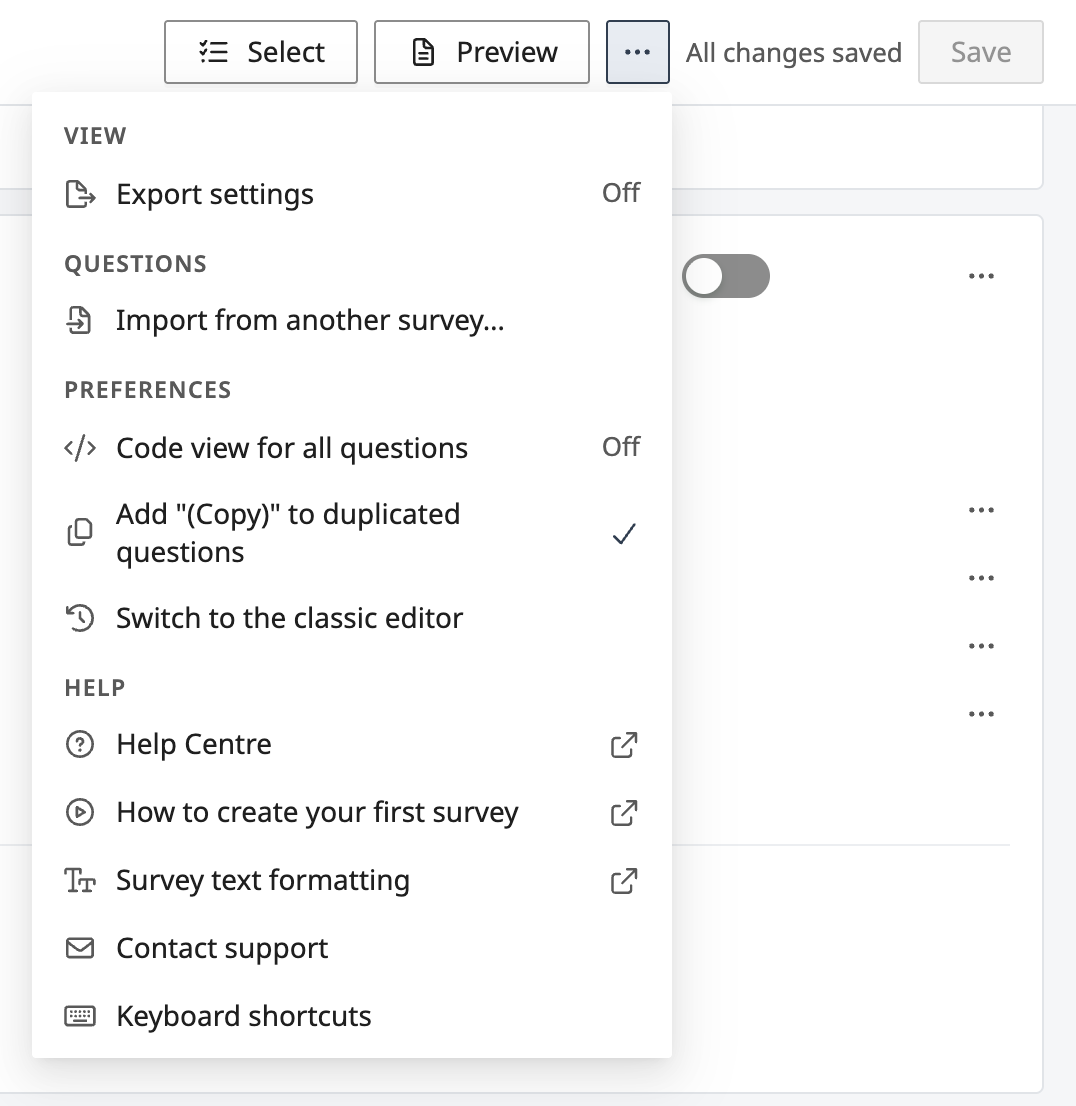
| The export settings switch in the sidebar | ⋯ › Export settings |
| The switch that adds "(Copy)" to duplicated questions | ⋯ › Add "(Copy)" to duplicated questions |
| The help links in the sidebar | ⋯, under Help |
The toolbar
The toolbar stays at the top of the page while you scroll.
- Add question opens the question picker.
- Jump to question finds a question by its number or by words in it.
- Select lets you work on several questions at once.
- Preview shows the printed pages of the survey as you last saved it, beside your questions on a wide window and over them on a narrower one. It updates after each save. When it sits beside your questions, drag its left edge to make it wider or narrower, or double-click the edge to go back to the usual width. The View larger button at the top of the preview opens the pages as a PDF in a new tab.
- ⋯ holds the other options: Export settings; Import from another survey…; Paste at the end, once you have copied questions; Set up from text, Word or PDF…, while the survey has no questions; Code view for all questions, which shows the formatting codes in question text instead of the formatted text; Add "(Copy)" to duplicated questions; Switch to the classic editor; the help links; and Keyboard shortcuts.
- Next to Save, the status reads Unsaved changes, Saving… or All changes saved. When a question needs your attention, a link such as 2 problems takes you to the next one.
On a survey in several languages the toolbar also has a language button, and on a graded survey it shows the total points, such as Total: 14 points. On a narrower window, the total, the language button and Select (as Select questions) move into the ⋯ menu, and the other buttons get shorter, down to their icons.
Adding questions
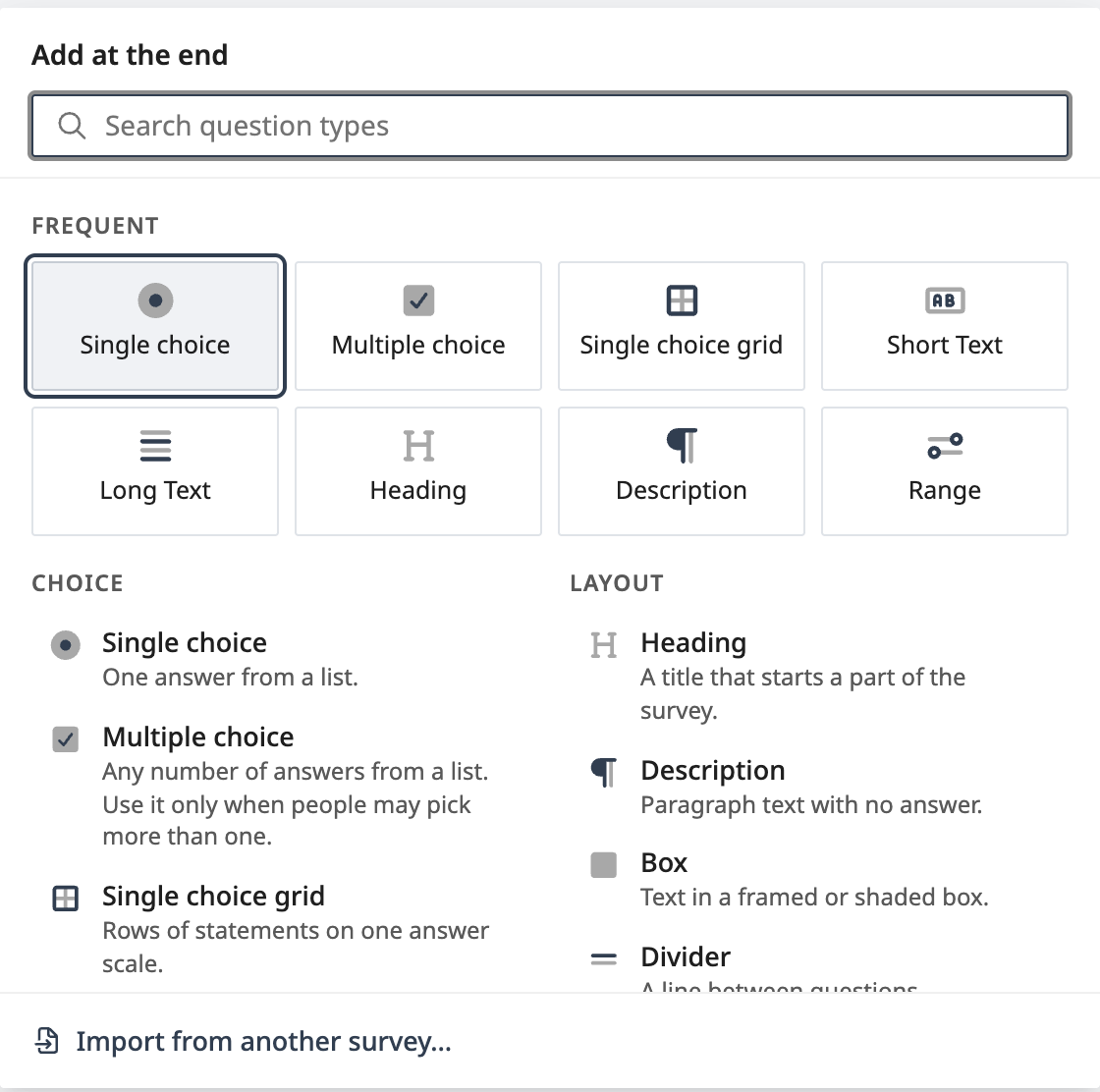
Click Add question. The picker shows the most used types first, then every type by group (Choice, Write-in, Layout, Groups, Research designs and Advanced), and you can search by name. The new question goes below the question you worked on last, or at the end if you have not worked on one yet, and the picker's title says where, for example "Add below 3. How did you hear about us?". Choose At the end instead to put it at the end. When the question it goes below is the last one in a section, Multi Column or Repeater, the picker also asks whether the new question goes inside that block or after it.
You can also:
- point between two questions and click the + that appears, to add a question at that spot;
- click Add question under the last question;
- choose Question tools › Insert question above… or Insert question below…;
- click Add question inside on a section, Multi Column or Repeater, to add a question at the end of it;
- choose Import from another survey… at the bottom of the picker, to copy questions you already wrote.
While a survey has no questions, the editor offers the most used types, All question types…, Import from another survey… and Set up from text, Word or PDF….
Editing a question
At the top of each card you find:
- the question's number;
- its type: click it to change the type, in the same picker;
- New or Edited, until you save;
- short words for settings that differ from the usual, such as Web only or Skip logic: 2 rules; most of them take you to that setting when you click them;
- Required:, where the type has it;
- Move up, Move down and Duplicate, which appear when you point at the card on a computer;
- Question tools, the ⋯.
Below them, type the question text, the help text and the answers where they are. Each answer has its own ⋯ for moving, hiding or deleting it.
Under the answers are the settings most surveys change for that type, such as Options per line: on a single choice question. More settings opens the rest, in up to four groups: Display, Scanning, Logic and scoring, and Data. While it is closed, the words next to it name the settings inside that differ from their defaults, so you can see what a question holds without opening it.
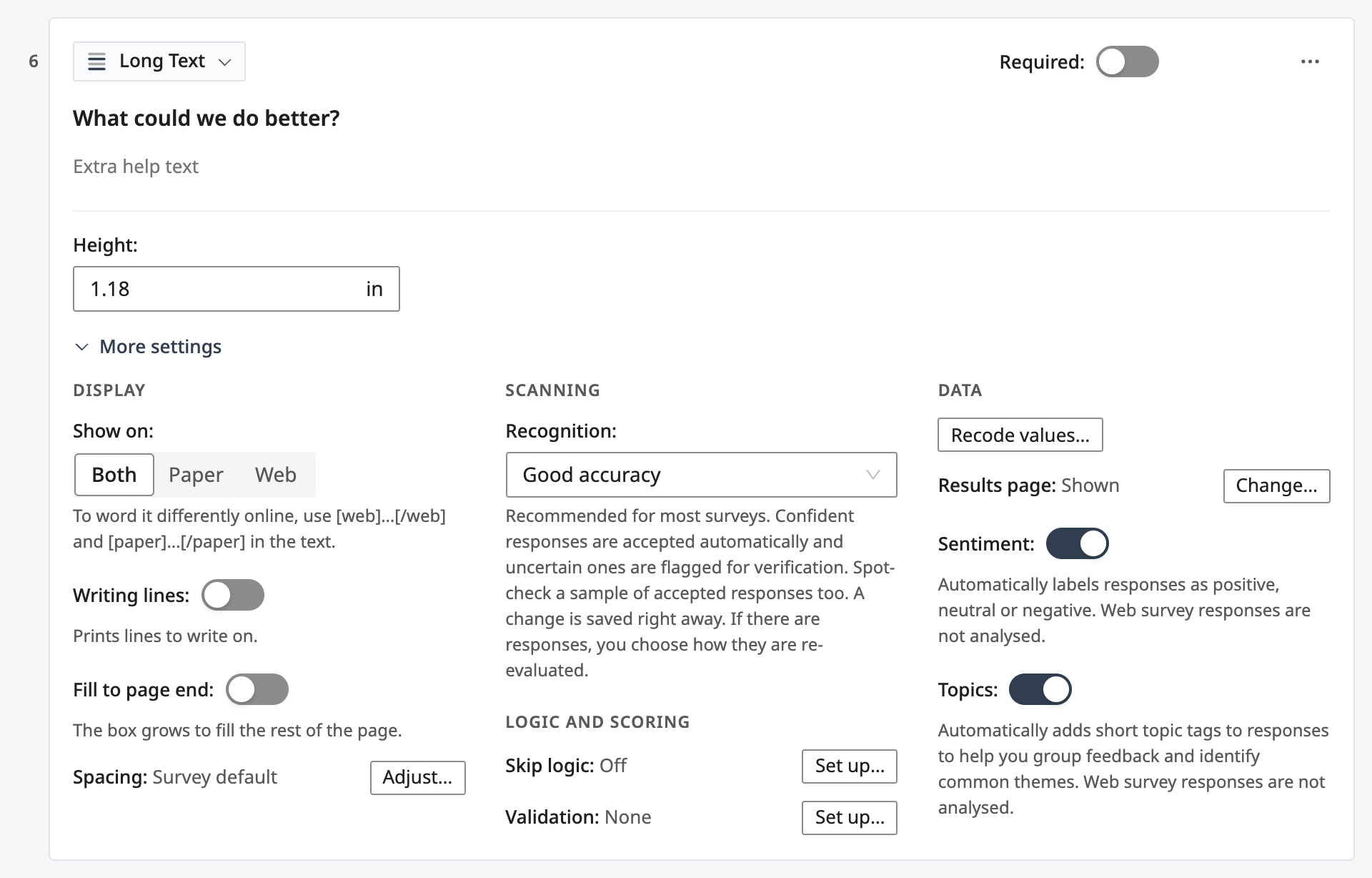
Settings with a dialog of their own, such as skip logic and validation, show one line with Set up…, or Edit… once they are set. On a question you have not saved yet, they say Save the survey first.
If you change the type of a question that already has responses, and the new type may not show them correctly, the editor asks Change the question type?. Change the type keeps the new type, and Undo change puts the question back as it was.
Question tools
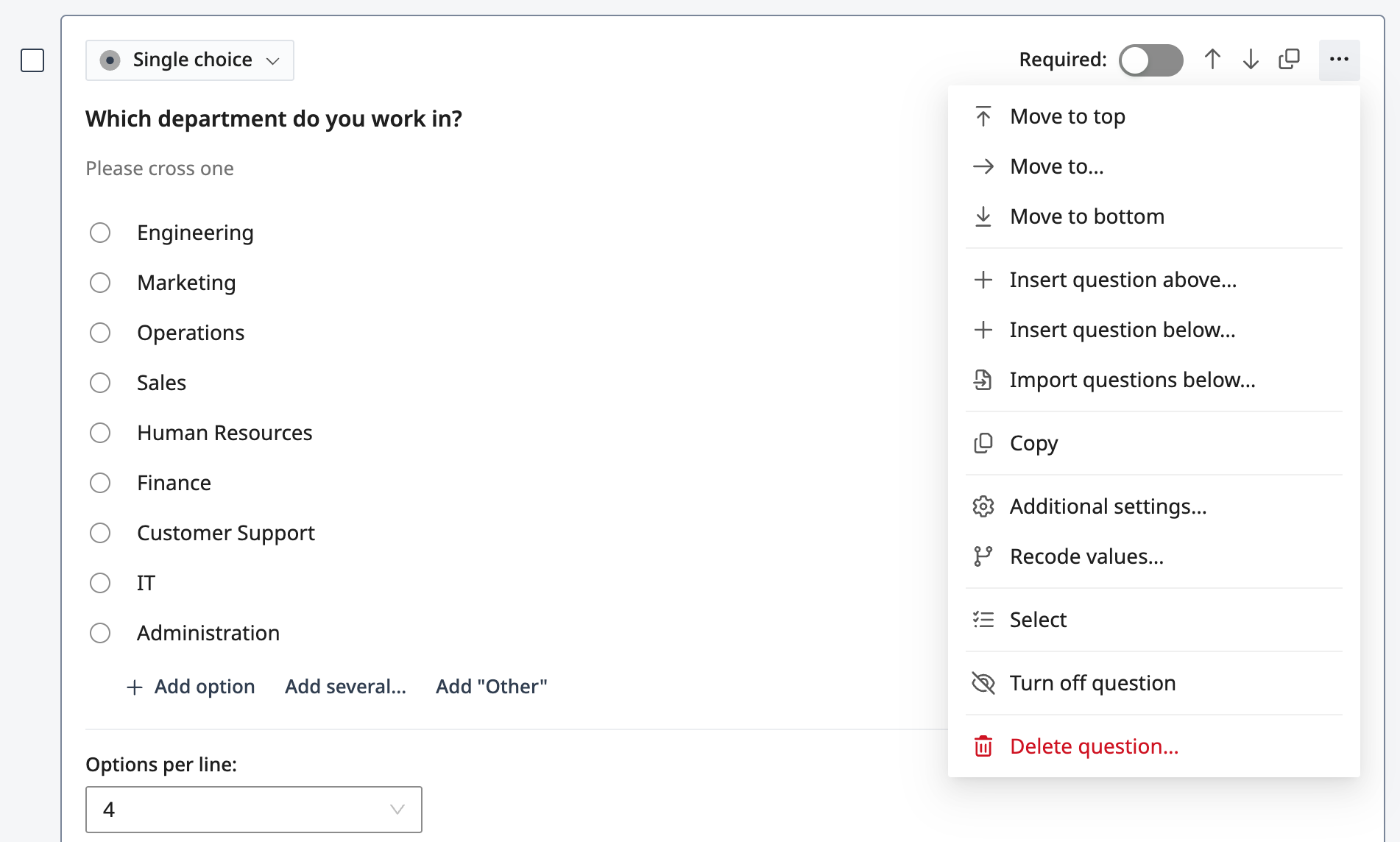
Question tools, the ⋯ at the top right of a card, holds what you do with the question as a whole:
- Move up, Move down and Duplicate, on a touch screen or a narrow card, where the card does not show them at the top;
- Move to top, Move to… and Move to bottom;
- Insert question above…, Insert question below… and Import questions below…;
- Copy, and Paste above and Paste below once you have copied a question;
- Additional settings…, Recode values… and Answer key…, where the question has them;
- Select;
- Turn off question, or Turn on question on a question that is off;
- Delete question…, which reads Delete section…, Delete Multi Column…, Delete repeater… or Delete table… on a section, Multi Column, Repeater or Before/After Table.
To move a question with the keyboard, put the focus on its type and press Option+Shift+↑ or ↓ on a Mac, or Alt+Shift+↑ or ↓ on Windows. The focus stays where it is, so you can keep pressing.
Delete question… first checks whether the question has responses or printed copies, then asks once, with the numbers. If it has any, Turn off instead keeps the question and its responses. A question is deleted right away, without Save. When you delete a section, Multi Column or Repeater from its own Question tools, you can also remove only the block and keep the questions inside it where they are.
Turning a question off
Question tools › Turn off question keeps the question and its responses but leaves it out of the printed form and the web survey. The card then reads "Turned off. It is not printed or shown online, and its responses are kept." with Turn on.
Turning off a section, Multi Column or Repeater turns off the questions inside it too, and folds it. Each question inside says why it is not shown, with a button that takes you to the block, such as Go to section.
Working with several questions
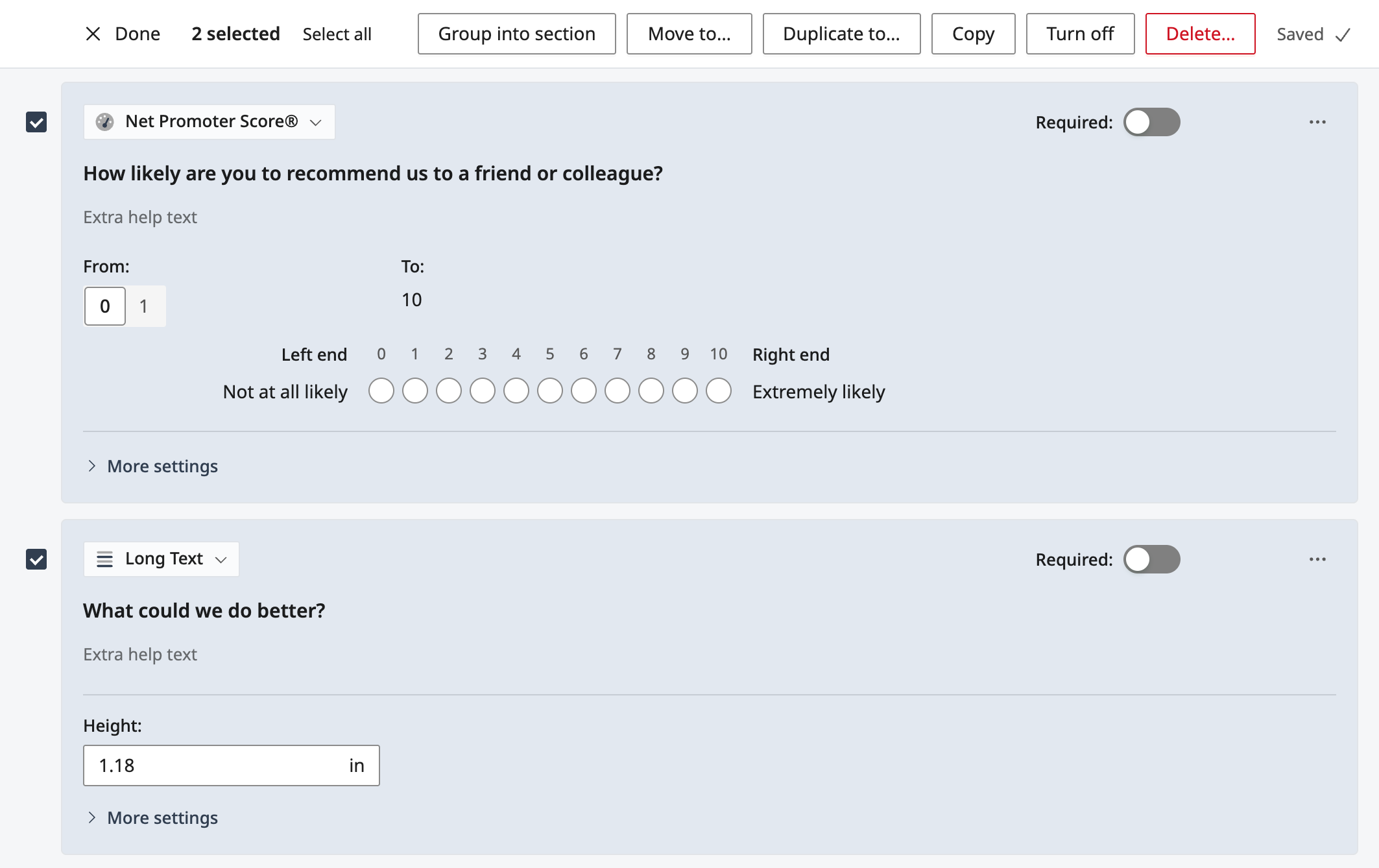
Click Select in the toolbar, or choose Question tools › Select on a card. Every card then shows a checkbox; shift-click a second one to select every question in between. On a computer you can also start by ticking the checkbox that takes the place of a card's number when you point at it. Selecting a section, Multi Column or Repeater includes the questions inside it, and the count says so.
The bar that replaces the toolbar offers Group into section, Move to…, Duplicate to…, Copy, Turn off (or Turn on, when every selected question is off) and Delete…, and Select all selects every question. On a narrow window the actions are under Actions. An action that cannot be used for the questions you selected says why. Click Done, or press Esc, when you are finished.
Finding a question
Type a few words of a question, or its number, in Jump to question and choose it from the list. Words in its answers, grid rows and type name count too. The editor opens any section, Multi Column or Repeater the question is folded into, scrolls to it and puts the cursor in its text. Press / to go to Jump to question from anywhere you are not typing.
Saving
Click Save, or press Cmd+S on a Mac or Ctrl+S on Windows, also while you type. Until you save, changed questions read Edited and new ones New. If you leave the page, or switch the survey's language, with changes that are not saved, the editor asks first.
If a save fails, the toolbar reads Not saved and a message under it says why. A question with a problem says so on its card, and Show first problem takes you to it.
Deleting a question or an answer does not wait for Save: it happens right away.
Keyboard shortcuts
Press ? when you are not typing, or choose ⋯ › Keyboard shortcuts, to see them in the editor.
| What it does | Mac | Windows |
|---|---|---|
| Save your changes | Cmd+S | Ctrl+S |
| Go to Jump to question | / | / |
| Show the keyboard shortcuts | ? | ? |
| Move the question up or down, from its type | Option+Shift+↑ or ↓ | Alt+Shift+↑ or ↓ |
| Copy the question you last clicked or reached with Tab, or the selected questions | Cmd+C | Ctrl+C |
| Paste the copied questions below the question you last clicked or reached with Tab | Cmd+V | Ctrl+V |
| Go to the next or the previous control | Tab, Shift+Tab | Tab, Shift+Tab |
| Move through the question picker or Jump to question, then choose | ↑ or ↓, Enter | ↑ or ↓, Enter |
| Choose the previous or the next option in a row of options, such as Small, Large and Extra large | ← or → | ← or → |
| Close the menu, picker or panel that is open, or stop selecting | Esc | Esc |
/, ? and the copy and paste keys work only when you are not typing in a field. While text is selected, Cmd+C or Ctrl+C copies the text, as usual.
On a tablet or phone
The editor works at any screen width. On a touch screen the buttons are larger, Move up, Move down and Duplicate are in Question tools, and the + between questions is not shown: use Add question, or Question tools › Insert question above… or Insert question below…. The checkboxes for selecting questions appear once you tap Select. On a phone, the question picker, the ⋯ menu and Question tools open as sheets from the bottom of the screen.
Switching to the classic editor
While the classic editor is still available, you can go back to it. Until you choose Got it, a line under the toolbar reminds you how.
- Click ⋯ at the right of the toolbar.
- Under Preferences, choose Switch to the classic editor.
If you have changes that are not saved, the editor asks first: Save and switch, Discard and switch or Cancel.
The classic editor shows a line at the top, "You are using the classic question editor. The new editor shows the same questions and settings.", with Switch to the new editor to come back.
Your choice is saved with your account, so it applies to every survey and on every device you sign in on. Everyone on your team makes their own choice. Both editors show and save the same questions and settings, so you can switch as often as you like.
The classic editor will be removed later. From four weeks before that day, it shows the date.
If something made you switch back, please tell us at hello@papersurvey.io, so we can fix it before then.