Welcome to PaperSurvey. This guide walks you through the basics so you can create a survey, collect responses, and view your results.
1. Create your survey
From the dashboard, click Create Survey and give it a name. You will be taken to the survey editor where you can start adding questions.
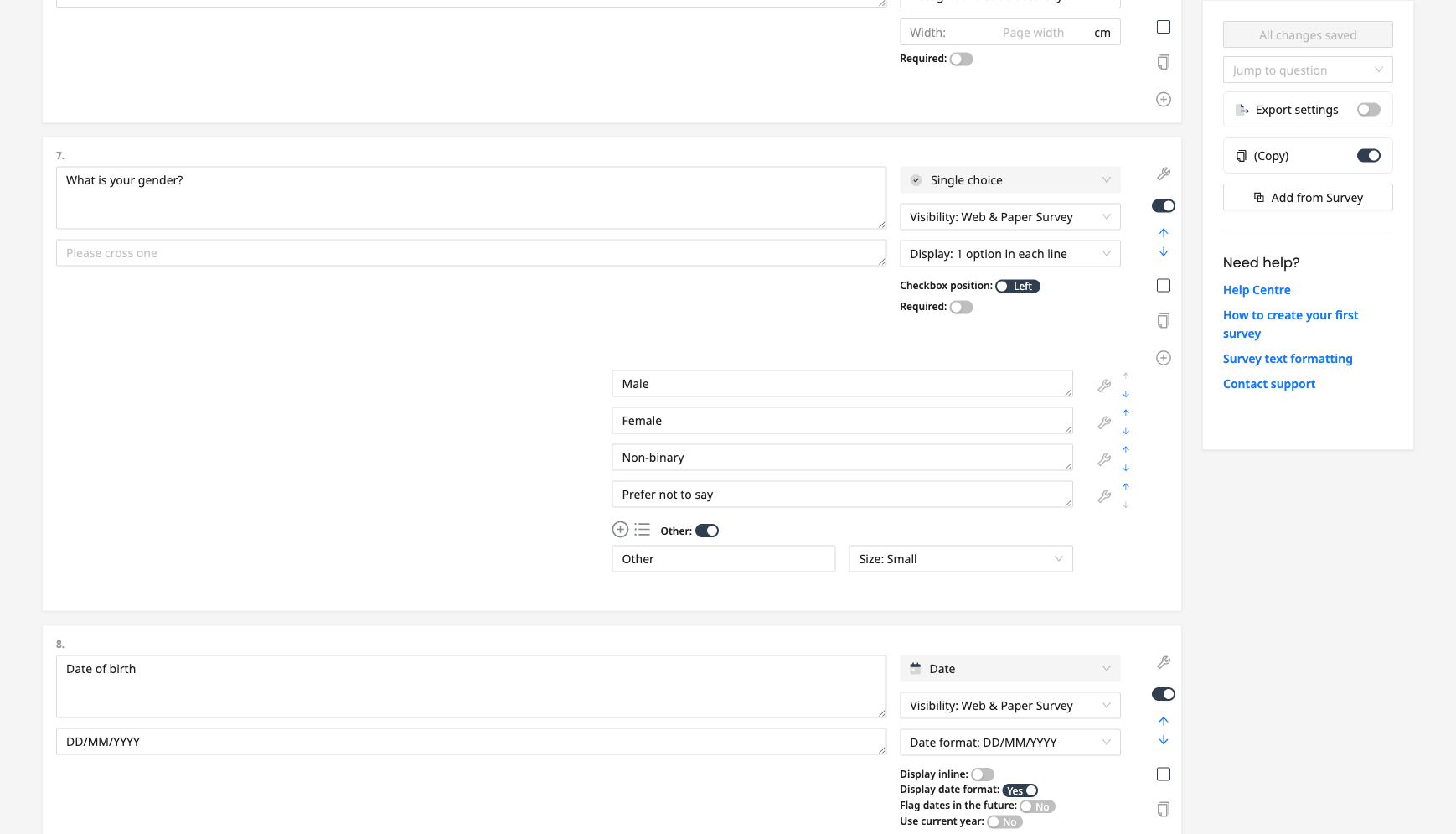
PaperSurvey supports many question types including single choice, multiple choice, grids, text fields, numbers, and more. Reorder questions with the move arrows next to each question, and use headings and dividers to organize sections.
For a full list of available question types, see Question Types Available in PaperSurvey.
2. Choose your collection method
PaperSurvey supports two ways to collect responses:
Paper surveys - Print your survey, distribute it to respondents, then scan or photograph the completed forms. PaperSurvey reads the responses automatically using OCR.
Web surveys - Enable web surveys in your survey settings to generate a shareable link. Respondents complete the survey online from any device.
You can use both methods at the same time. Paper and web responses are combined into a single dataset.
3. Collect responses
For paper surveys:
- Go to the Print tab, create a version, and download your survey as a PDF
- Print the PDF and distribute to respondents
- Collect completed surveys and scan them (or take photos)
- Upload the scans to PaperSurvey from the Upload tab
For web surveys:
- Open your survey settings and enable the Activate toggle in the Web Surveys section
- Copy the survey link and share it with respondents
- Responses are collected automatically as people submit the form
4. Review your data
After uploading scanned surveys, PaperSurvey processes them automatically. You may be asked to verify certain responses where handwriting was unclear. These appear in the Verify tab of your survey.
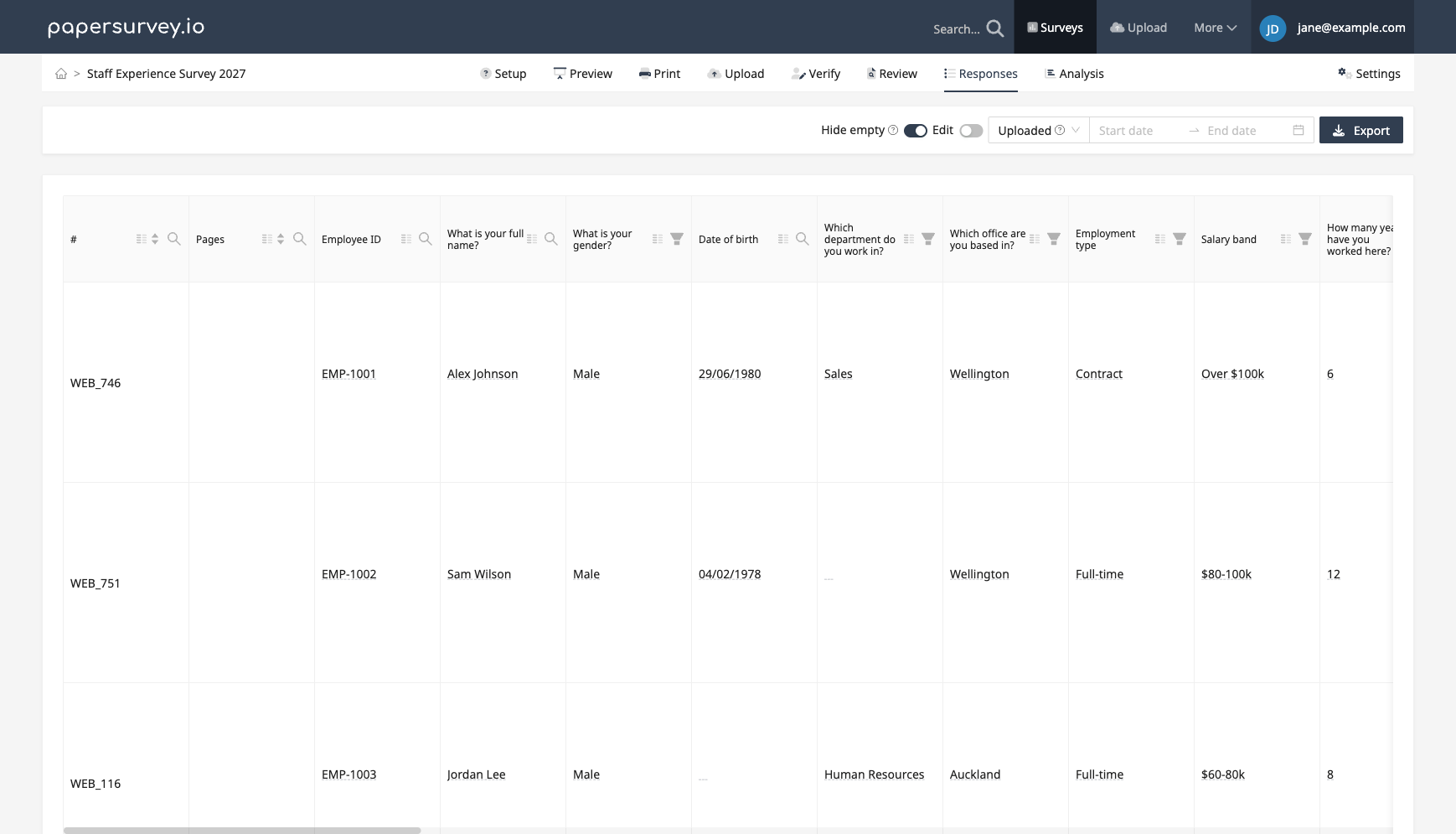
All responses (paper and web) appear in the Responses tab, where you can:
- Browse individual entries
- Filter and search responses
- Tag entries for organization
- Export data to Excel, CSV, or SPSS
5. Analyze your results
Go to Analysis to create dashboards with charts, cross-tabulations, and summaries. You can share these dashboards with colleagues or export them as PDF or PowerPoint presentations.
Next steps
- Your First Paper Survey for a detailed paper survey walkthrough
- Your First Web Survey for a web-only walkthrough
- Question Types to explore all available question formats