Skip Logic lets you show a question only when an earlier answer matches a condition you set. Use it to ask follow-up questions only when they apply, hide whole sections that aren't relevant, or branch respondents through different paths of your survey.
For example, you can ask "How long have you lived here?" only after the respondent answered "Yes" or "Not sure" to "Do you live in the area?". Respondents who answered "No" never see the follow-up.
A related capability, End Survey, lets a particular answer stop the survey immediately, sending the respondent straight to the thank-you screen. See Ending the survey early below.
Where Skip Logic appears
Skip Logic works on both the online (web) survey and the printed paper survey, but in slightly different ways:
- On the web survey: Conditional questions stay completely hidden until the rules match. Respondents never see them when the condition is false. Required validation is also skipped, so a hidden question never blocks the form from being submitted.
- On the paper survey: Every question always prints because we can't dynamically hide ink on a page. Instead, PaperSurvey adds two helpful guides automatically: a small "Only answer if..." reminder above the conditional question, and a "→ skip to Q5" hint under each answer of the earlier question that should bypass the follow-up.
Setting up Skip Logic
Skip Logic is configured per question, in the Additional Settings dialog.
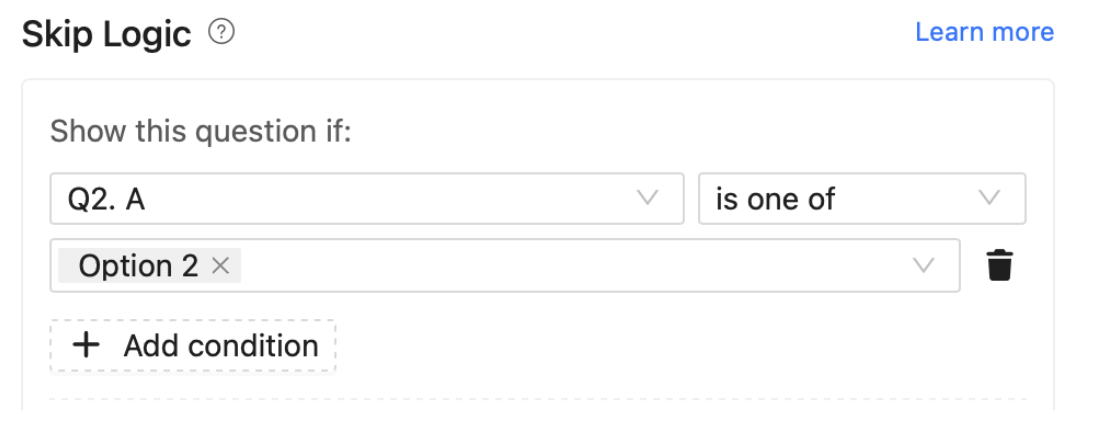
- Open the survey in the form builder.
- Click the tools icon next to the question that should be conditional and choose Additional settings.
- Find the Skip Logic section.
- Click + Add condition to add your first rule.
- Pick the earlier question, the operator, and (if needed) the answer values that should reveal this question.
- Save.
Conditions you can use
Each condition compares an earlier question's answer to a value. PaperSurvey supports four operators:
- is one of — show this question if the earlier answer is any of the values you pick. Most common for "Yes/No/Not sure" follow-ups.
- is not one of — show this question unless the earlier answer is one of the listed values. Useful when one specific answer should hide the follow-up.
- was answered — show this question only if the earlier question received any answer.
- was not answered — show this question only when the earlier question was left blank.
The "earlier question" must be a single-choice or multiple-choice question that appears before the conditional question in the survey.
Combining multiple conditions
You can add up to five conditions on the same question. When you have two or more, choose how they combine:
- All (AND) — every condition must be true. Use when several criteria must apply at once, e.g. "Q3 is Yes AND Q5 is Adult."
- Any (OR) — at least one condition must be true. Use when the question applies in several different cases.
If you need more complex logic than this, consider splitting the question into two conditional copies, each with its own simpler rule set.
Ending the survey early
Sometimes a particular answer means the survey should stop. The classic case is a consent question where "I disagree" should send the respondent straight to the thank-you screen without asking anything else. Another common case is a screener that excludes respondents who don't meet eligibility criteria.
For these, use End Survey instead of (or alongside) Skip Logic.
Setting it up
- Open the question's Additional settings.
- In the Skip Logic section, find End survey on answer and pick the answers that should immediately end the survey.
- Save.
End Survey is available on single-choice and multiple-choice questions. The terminal answers are stored alongside any Skip Logic rules on the same question, so a single question can both be conditional (Skip Logic) and act as a terminator (End Survey).
How it behaves on the web survey
The moment the respondent ticks a terminal answer, the form auto-submits silently and they land on the thank-you screen. They don't have to click Submit, and they're not asked the remaining questions. Any answers they may have already entered on later questions are not validated or stored, so your data only contains responses up to and including the terminal answer.
This matches the convention used by Qualtrics and REDCap, and is the recommended pattern for consent: a respondent who has just declined consent should not be asked to perform one more action to "send" their decline.
How it behaves on the printed paper survey
Next to the terminal answer, PaperSurvey prints a "→ end of survey" arrow in the same position used by regular Skip Logic for "→ skip to Q5". The arrow renders regardless of whether automatic question numbering is enabled, because no question number is being referenced.
If the respondent ignores the arrow and keeps ticking answers on later pages, those answers are dropped during OCR import. The stored entry only contains responses up to and including the terminal answer, matching web behaviour exactly.
When to use End Survey vs Skip Logic
- Use Skip Logic when later questions should sometimes be skipped but the survey continues.
- Use End Survey when a particular answer should end the survey entirely.
- They compose: you can use both on the same question if needed.
Best practices
- Consent questions. Mark the "decline" answer as the terminator. The silent auto-submit and OCR drop ensure non-consenters' data is not collected, which is what most IRB protocols expect.
- Screeners. Mark the disqualifying answer as the terminator and place the screener question before any data-collecting questions.
- The terminator answer itself is always kept. This is intentional: it lets you report on how many respondents declined consent or were screened out, without storing the rest of their unanswered survey.
What can be conditional
Skip Logic is available on most question types, including:
- Single-choice and multiple-choice questions
- Open-ended text questions, numbers, dates, NPS and rating scales
- Section headings, descriptions, and callout boxes — useful for hiding an entire section by attaching the rule to its heading and the questions under it
- Grids and tables (single-choice grids, yes/no tables, etc.)
Pure layout elements (page breaks, dividers, vertical spacers, multi-column wrappers, repeaters) do not support Skip Logic because they don't carry meaningful content on their own.
Skip Logic on the printed paper survey
When your survey is also distributed on paper, Skip Logic still helps respondents navigate without confusing them with hidden questions.
Automatic helpers
If your survey has automatic question numbering turned on, two things happen for every question with Skip Logic:
- A small italic reminder prints above the question. For example: "Only answer if Q3 is Yes or Not sure." This reminder is added on input questions only — for section headings, descriptions, and callout boxes, the reminder is omitted (there is nothing for the respondent to "answer" on a heading).
- A right-aligned hint "→ skip to Q5" prints next to each answer of the earlier question that bypasses the conditional question. The respondent reads "→ skip to Q5" under "No" and knows to jump past the follow-up.
When the skip arrow actually prints. The arrow is intentionally conservative — it only renders in cases where the routing is unambiguous:
- The conditional question must be directly after its parent in the survey, or every question between them must also depend on the same parent and be hidden by the same answer.
- The rule must reference exactly one parent question. Multi-condition rules (e.g. "Q3 = Yes AND Q5 = Maybe") never produce an automatic arrow because the right next-step depends on multiple answers.
- The parent must be a single-choice or multiple-choice question.
If your rule doesn't meet those criteria, the printed reminder "Only answer if..." still appears above the conditional question — the respondent reads it when they get there and decides whether to engage. To get a skip arrow as well, move the conditional question so it sits immediately after its parent, or add [paper]…[/paper] shortcodes in the parent question's option labels to write your own routing instructions.
The editor surfaces a notice when your configured rule won't produce an arrow, so you'll see this called out before you generate the PDF.
Question numbering is required
If your survey doesn't use automatic question numbering, the printed reminder cannot say "Q3" — there are no question numbers to refer to. In that case PaperSurvey skips the automatic helpers and asks you to either:
- Turn on automatic question numbering in your survey settings, or
- Write your own paper instruction inside the question name (see below).
Writing your own paper instruction
Sometimes the automatic wording doesn't read well, or you want a paper-only sentence that's worded differently from the one online. Both [paper]…[/paper] and [web]…[/web] shortcodes let you target text at a specific medium.
Inside any question name, helper text, or option label:
[paper]…[/paper]— the wrapped text prints only on the paper survey. Use this for printed skip directions.[web]…[/web]— the wrapped text shows only on the web survey. Useful for clickable hints or web-specific phrasing.
Example of a question name that has both an online and a printed instruction:
Do you live in the area? [paper]If No, skip to Q5.[/paper]On the web survey respondents see "Do you live in the area?". On the printed paper they see "Do you live in the area? If No, skip to Q5."
To suppress the automatic reminder and skip hints for a specific conditional question, open its Additional settings, scroll to Skip Logic, and check "Don't add these automatically. I'll write my own paper instruction." Then add your instruction with [paper]…[/paper] in the question name.
How responses are stored
When a question is hidden by Skip Logic on the web survey, no response is stored for it, even if the respondent had answered it earlier and then changed an upstream answer that hides it. This keeps your data clean: you'll only see answers that the respondent was actually asked.
On paper, all Skip-Logic-hidden responses are stored as scanned, including any ink the respondent may have entered against a question they were supposed to skip. PaperSurvey doesn't filter those out, because there's no reliable way to know whether the respondent intentionally crossed the skip instruction or simply ignored it.
End Survey is the exception on paper. When a terminal answer is detected, every response captured after that question is dropped at import time, on both web and paper, so the two channels stay consistent.
Tips and best practices
- Keep rules simple. A single condition with one or two values is easier for respondents to follow on paper than a multi-rule AND/OR.
- Place the conditional question close to its parent. A respondent reading a printed survey will follow the "→ skip to Q5" arrow more naturally if the target is a few questions away, not pages later.
- Hide entire sections by attaching the rule to a heading. The heading and every question that follows can be hidden as a group on the web. On paper, the heading itself prints without a reminder; each input question in the section carries its own "Only answer if..." note, and the skip arrows under the parent question's answers carry the routing.
- Use
[paper]…[/paper]shortcodes for any wording the automatic helper can't capture. Long sentences, polite phrasing, multi-step routing — these all read better when you write them yourself. - Test your logic on the web preview before printing. Once you're happy with how the survey behaves online, generate the PDF and walk through the printed routing arrows.
What Skip Logic does not do (yet)
- Conditions on numeric ranges (e.g. "show if Q5 is greater than 18") are not supported. Use a single-choice question with age groups for now.
- Conditions on free-text answers (e.g. "show if Q5 contains 'student'") are not supported.
- Grid sub-questions cannot themselves be parents of a Skip Logic rule.
If you need any of these and they would help your survey, let us know at support@papersurvey.io.