PaperSurvey offers two ways to bring questions into a survey: adding questions from another existing survey, or importing from external files.
Adding questions from another survey
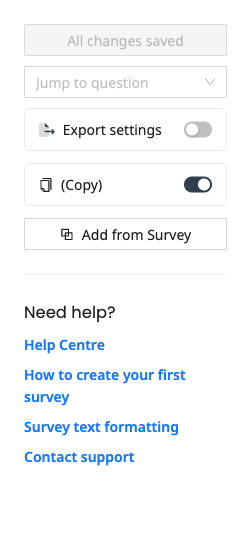
- Open the survey where you want to add questions
- In the survey editor sidebar, click Add from Survey
- Select the source survey from the list of your existing surveys
- Tick the questions you want to add, or use Select All
- Click Import
The selected questions will be added to your current survey. You can then rearrange, edit, or modify them as needed.
Importing from external files
You can also set up a survey from an existing questionnaire. PaperSurvey uses AI to parse the content and extract questions automatically.
- Open the editor of a survey that has no questions yet
- Click Setup from Text, Word or PDF
- Upload a PDF, Word (DOCX), or plain text file up to 10MB, or paste your questions as text
- Click Import, then review the extracted questions, as some manual adjustments are typically needed
You can add extra sources in other languages in the same dialog to fill in translations for a multi-language survey. File imports are limited to 15 per day (3 per day during the trial).
What gets imported
When you add questions, the following are copied:
- Question text and type
- Answer options and labels
- Question settings (such as required, help text, and layout options)
Responses from the source survey are not imported. Only the question structure is copied.
Duplicating an entire survey
If you want to reuse all questions from a survey, it may be faster to duplicate the entire survey instead of importing individual questions. See Survey Duplication for details.
Using templates
PaperSurvey also offers pre-built survey templates that you can use as a starting point. Templates cover common use cases like customer satisfaction, employee feedback, and event evaluations.