The survey editor shows sizes in the unit your team prints in. Teams on US Letter or Legal paper see inches, and teams on A4 or another A size see millimeters. Sizes you type in either unit are converted for you, and printed surveys come out the same whichever unit you look at.
Choosing inches or millimeters
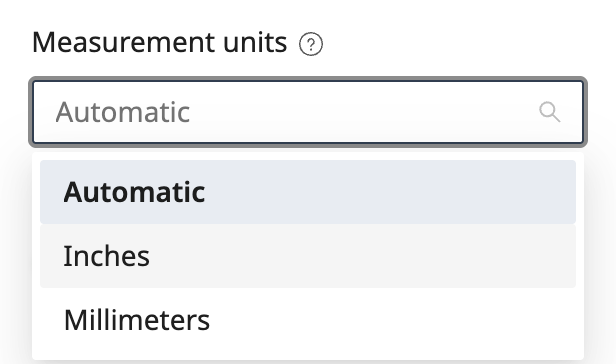
The unit follows your team's paper size. To pick one yourself, go to Settings, stay on Personal, set Measurement units to Inches or Millimeters and click Update. Automatic goes back to following the paper size. The choice is personal, so a colleague on the same team can keep the other unit.
Typing a size
Fields with a unit, such as margins, spacing, field widths and heights, line spacing and the column gap, accept a size in any common unit:
0.5in,12mmor1.2cm- a decimal comma works too, as in
1,2 cm - a number on its own is read in the unit the field shows
The field converts what you type and shows it back in your unit. It only saves when you change the value, so opening a survey never changes its sizes.
Sizing text in lines
Text blocks in question text can be sized in lines of text instead of a physical height:
[height=2 lines]Thank you for attending the {{Session date}} training.[/height]A line follows the survey's text size, so [height=2 lines] always holds two lines however large the text is. If the text inside is longer, it is set smaller until it fits the same space. This is the safest way to keep a prefilled {{Column}} value from pushing the rest of the page down. [height=1 line] works for a single line.
[height] and [width] also accept physical sizes, such as [height=2cm], [width=3in] or [width=50%] for half the line. If you leave out the unit, the preview shows a message in its place and publishing stops until you add one.
Sizes that are always physical
The checkbox size and the margins are physical sizes, because the scanner measures them on the paper. The editor shows them in both units, for example "5 mm (0.20 in)", and shows where the corner marks will print, so you can check them against your printer's margins.
Images
Image sizes in the [img] shortcode are in centimeters. One inch is about 2.5 centimeters, so [img width=5]my-image[/img] is about 2 inches wide. See How to add images in survey forms for alignment and positioning.