Webhooks let you receive automatic notifications whenever a new survey response is submitted. PaperSurvey sends an HTTP POST request to a URL you specify, containing the response data. This lets you connect PaperSurvey to your own systems without polling the API.
Setting up a webhook
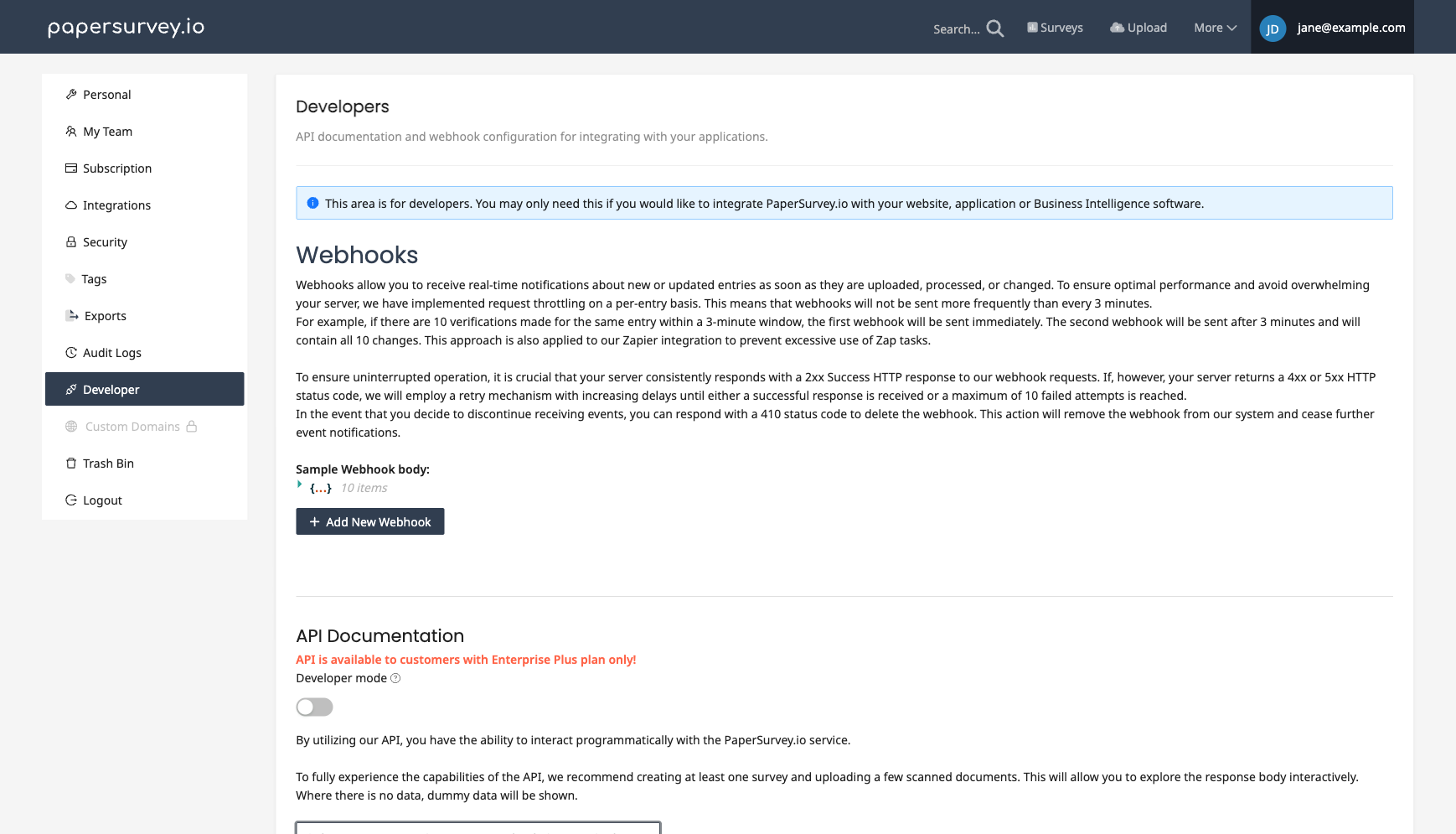
- Go to your Developer Settings
- Scroll to the Webhooks section
- Click Add New Webhook
- Enter the URL where you want to receive notifications, and optionally select a specific survey. If you leave the survey field empty, the webhook fires for every survey on your team.
- Click Add
PaperSurvey will send a POST request to this URL each time a new response is submitted, processed, or updated. To avoid overwhelming your server, deliveries are throttled per response: at most one webhook is sent every 3 minutes for the same response. If several changes happen to one response within that window, the next webhook includes all of them.
What data is sent
Each webhook request includes a JSON payload with:
- The survey identifier
- The entry data (responses to each question)
- Metadata such as submission timestamp and entry type (paper or web)
Testing your webhook
After setting up a webhook, submit a test response to your survey (either via the web form or by uploading a scan). Check your receiving endpoint to confirm the data arrived correctly.
The actions menu next to each webhook also helps during development: Test sends your most recent entry to the URL, Sample body shows the exact JSON payload your webhook will receive, and View log shows the delivery history with status codes and response times. If you collected data before setting up the webhook, the Sync action sends all historical entries to the URL.
You can use services like webhook.site to inspect incoming webhook payloads during development.
Retry behavior
If your endpoint is unreachable or returns an error (non-2xx status code), PaperSurvey will retry the webhook delivery with increasing delays, up to a maximum of 10 attempts. If your endpoint repeatedly responds with 404 or 403, the webhook is deactivated automatically; once your endpoint is fixed, you can reactivate it from the webhooks list. If you want to stop receiving events entirely, respond with a 410 status code and the webhook will be deleted.
Security considerations
- Use HTTPS endpoints to protect data in transit
- Verify the signature to ensure requests come from PaperSurvey. Every delivery includes an
X-PaperSurvey-Signatureheader (sha256=followed by an HMAC-SHA256 digest) and anX-PaperSurvey-Timestampheader. Compute an HMAC-SHA256 over the string{timestamp}.{raw request body}using your webhook's signing secret and compare it to the signature. Each webhook has its own signing secret, which you can view or rotate via the Signing action in the webhooks list. - Avoid exposing sensitive internal systems directly; use a middleware or API gateway if needed
Common use cases
- CRM updates - Automatically create or update records when a survey is completed
- Email alerts - Trigger email notifications to specific people based on response content
- Database sync - Write survey responses directly to your internal database
- Dashboard updates - Push new data to a real-time reporting dashboard
Related articles
- Does PaperSurvey Offer an API? for direct API access
- Zapier Integration for no-code automation