For multi-page surveys, page numbers help respondents track their progress and make it easier for your team to keep printed pages in order. PaperSurvey provides shortcodes that dynamically insert page numbers into the footer area of each page.
Page number shortcodes
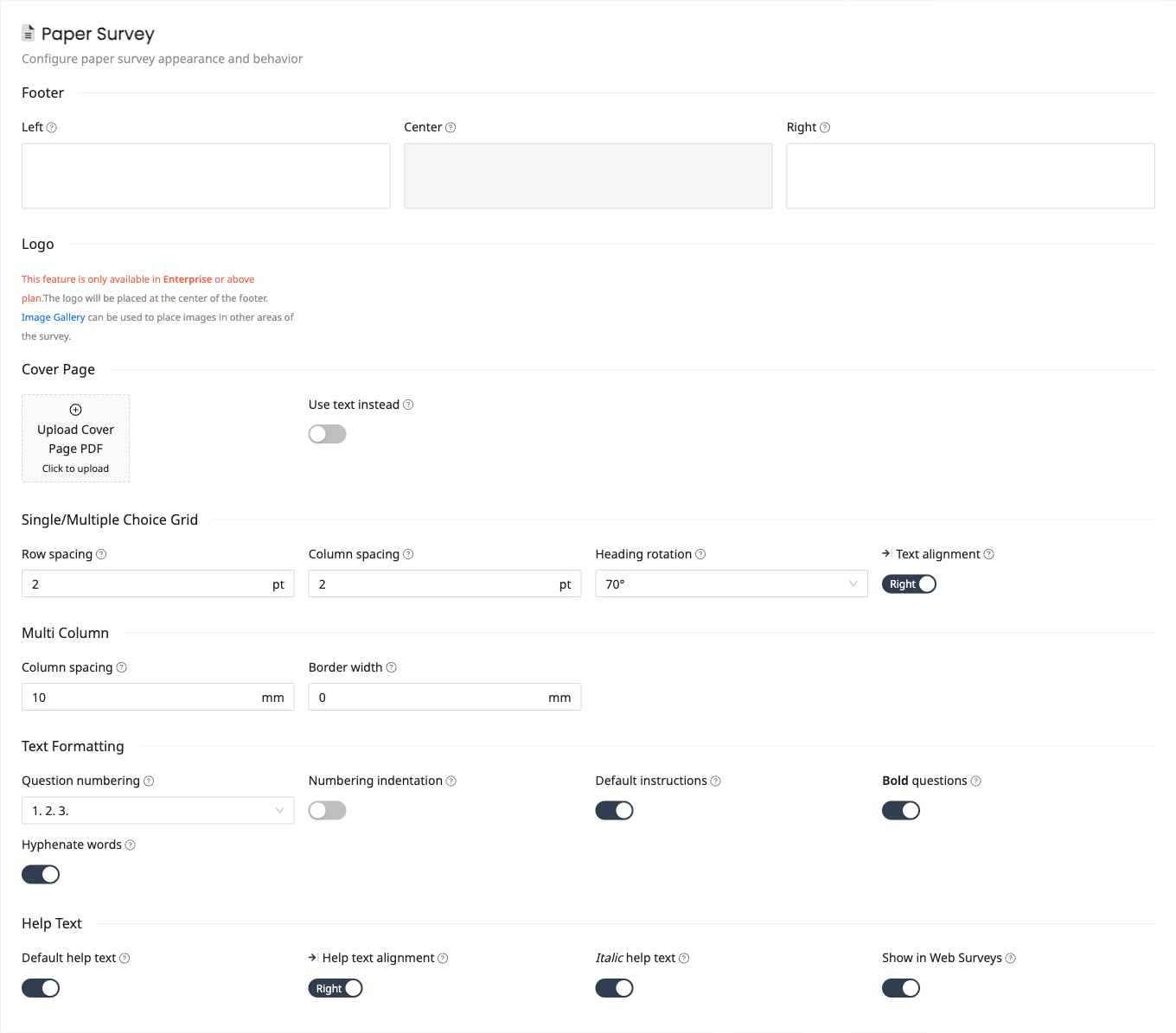
Add the following shortcodes in the footer area of your survey to display page numbers:
[currentpage]displays the current page number[lastpage]displays the total number of pages
For example, entering Page [currentpage] of [lastpage] in the footer will produce text like "Page 1 of 5" on the first page, "Page 2 of 5" on the second, and so on.
Displaying text on a specific page
If you want certain text to appear only on a particular page, use the [page=PAGE]My text[/page] shortcode. Replace PAGE with the desired page number and My text with the content you want to display. This is useful for placing page-specific instructions or notes in the footer area.
To get started, open Survey Settings and enter your shortcodes in the Left, Center, or Right fields of the Footer section under Paper Survey. The Center field is available on plans that include branding customization, since text there replaces the footer logo. Preview your survey to confirm the page numbers render correctly before printing.