This guide walks you through the complete process of creating a paper survey, printing it, collecting responses, and viewing your results.
Step 1: Design your survey
- Click Create Survey on your dashboard
- Enter a name for your survey
- Add questions in the editor using the Add new question button, or the plus button that appears between questions, then pick a type for each question from its dropdown
Start simple. A good first survey might include:
- A single choice question (e.g., "How satisfied are you?")
- A multiple choice question (e.g., "Which features do you use?")
- A short text question (e.g., "Any additional comments?")
You can preview your survey at any time by clicking Preview in the top toolbar.
Step 2: Print your survey

- Go to the Print tab in the survey editor
- Click Create a version for printing
- Once the version is generated, click Print next to it, then Download in the dialog that opens (you can also have the PDF sent to your email)
- Print the PDF on standard A4 or Letter paper
For best results:
- Print in black and white (color is optional)
- Use standard white paper
- Do not scale or resize the PDF when printing
- Make sure the four corner markers are clearly visible
See Do I Need to Print Surveys in Color? for more details.
Step 3: Distribute and collect
Hand out printed surveys to your respondents. They can fill in the survey using a pen. Once completed, collect all the forms.
Step 4: Scan your surveys
Scan the completed surveys using a flatbed scanner, document scanner, or even a smartphone camera. Save the scans as PDF, JPEG, PNG, HEIF, or TIFF files.
For scanning recommendations, see Recommended Scanner Settings.
Step 5: Upload to PaperSurvey
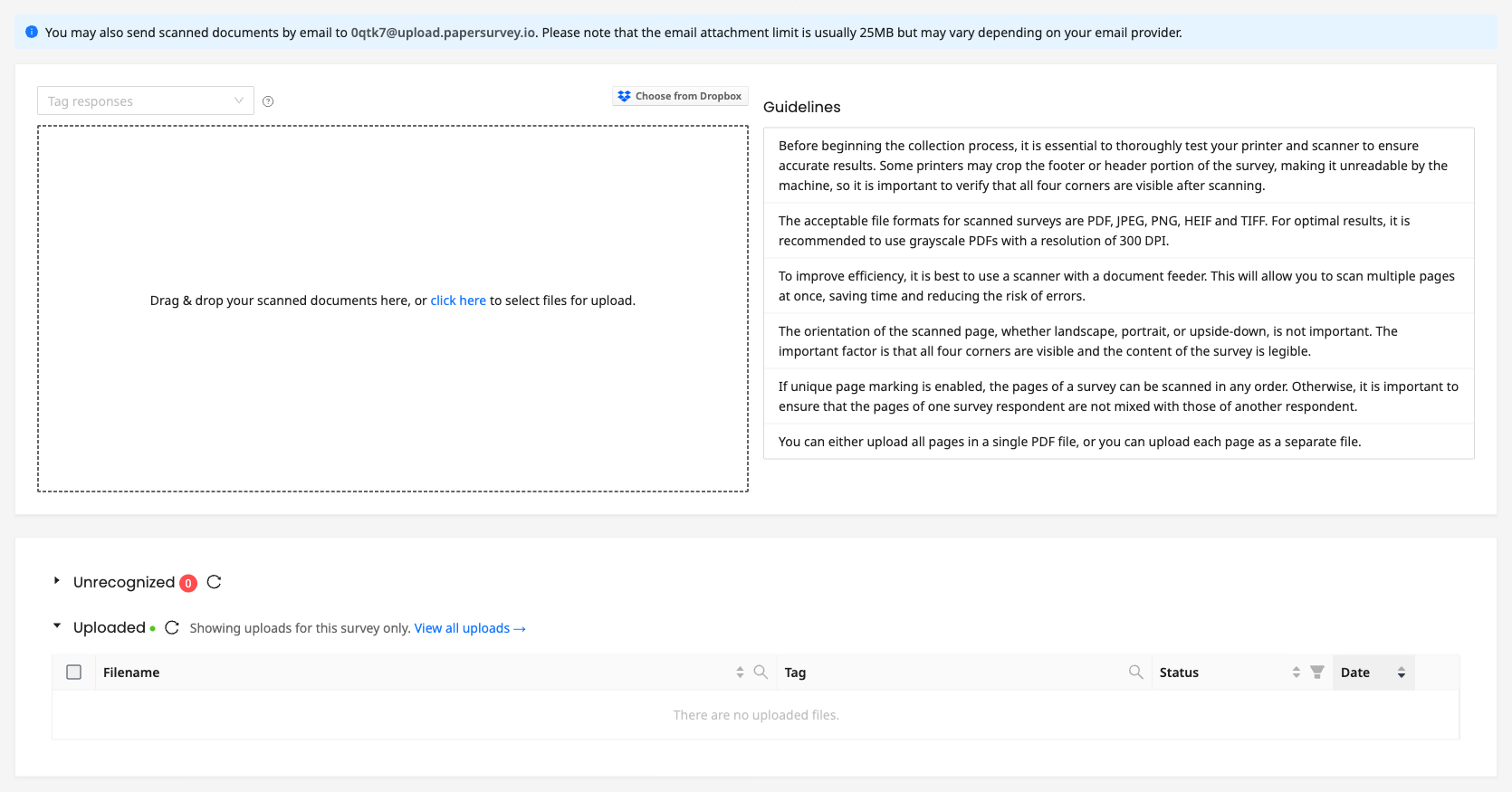
- Open your survey and go to the Upload tab
- Drag and drop your scanned files, or click to browse
- PaperSurvey will begin processing your uploads automatically
Processing typically takes a few seconds per page. You will see a progress indicator as pages are read.
Step 6: Verify responses
After processing, PaperSurvey may flag some fields for verification. This happens when handwriting is unclear or a mark is ambiguous.
- Go to the Verify tab (a counter on the tab shows how many fields need attention)
- Compare each detected answer with its scanned image snippet
- Confirm or correct each flagged field
The Review tab covers the rest: every recognized answer, flagged or not, listed beside the part of the page it was read from. Sort it by recognition accuracy to see the least certain answers first, hover an answer to correct it, or click an Entry № to open that respondent's whole sheet next to its scanned pages. See Reviewing Recognized Answers.
Step 7: View and export your data
Once verification is complete, your data is ready. You can:
- Browse responses in the Responses tab
- Create charts in the Analysis tab
- Export data as Excel, CSV, or SPSS files using the Export option in the Responses tab
Congratulations, you have completed your first paper survey from start to finish.