Two-factor authentication (2FA) adds an extra layer of security to your PaperSurvey account. When enabled, you need both your password and a verification code from your phone to sign in.
Enabling 2FA
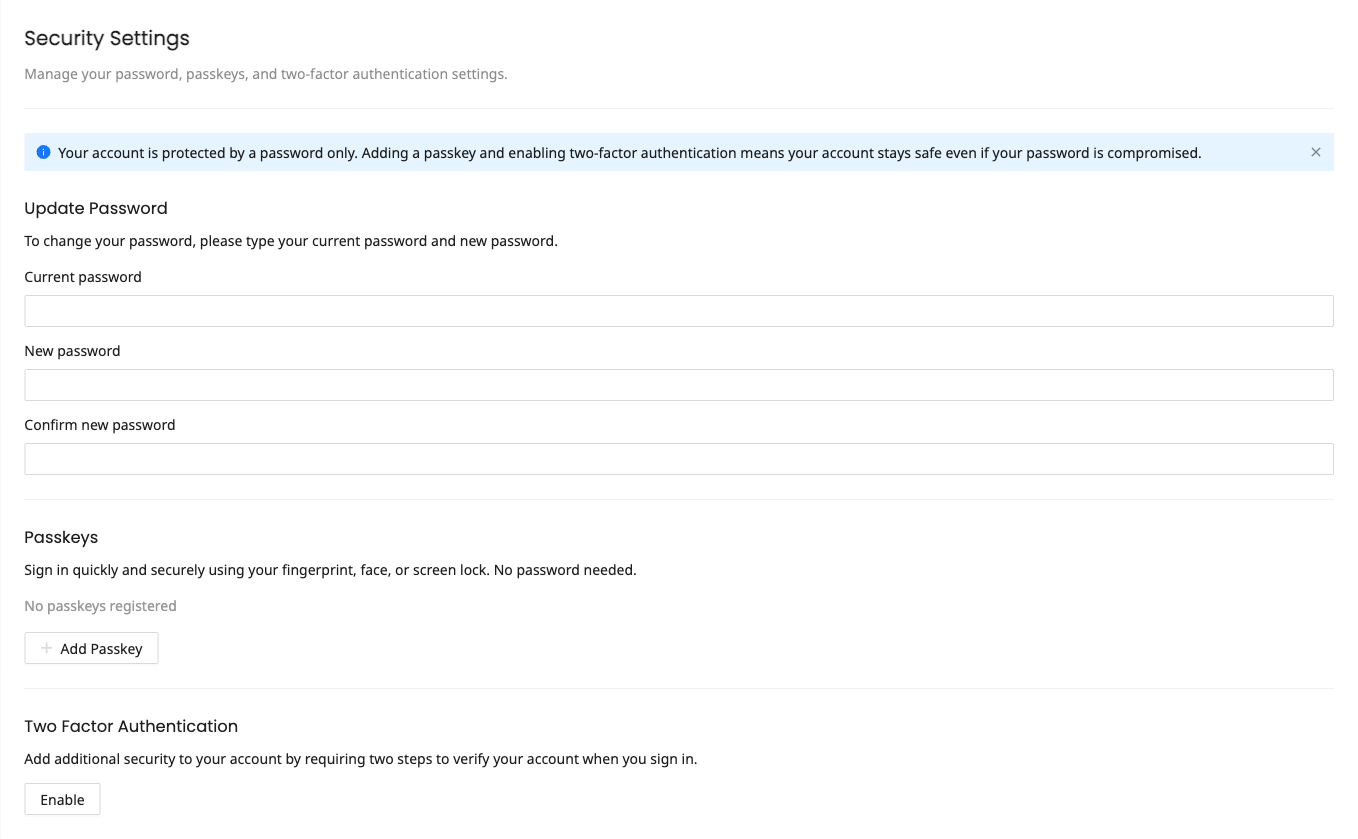
- Go to Settings > Security
- Find the Two Factor Authentication section
- Click Enable and confirm your password
- Scan the QR code with an authenticator app on your phone (such as Google Authenticator, Authy, or 1Password). If you cannot scan it, type the setup key shown below the QR code into your app instead
- Enter the verification code displayed in the app and click Confirm to finish setup
Recovery codes
After enabling 2FA, you will be shown a set of recovery codes. These are single-use codes that let you sign in if you lose access to your authenticator app.
Store these codes securely. Save them in a password manager or print them and keep them in a safe place. Each recovery code can only be used once.
You can view your codes again at any time by clicking Show recovery codes on the Security page (you will be asked to confirm your password). If you run out of recovery codes, click Regenerate in the recovery codes window to create a new set.
Signing in with 2FA
After entering your email and password, you will be prompted for a verification code. Open your authenticator app and enter the current 6-digit code.
If you cannot access your authenticator app, use one of your recovery codes instead.
Disabling 2FA
- Go to Settings > Security
- Find the Two Factor Authentication section
- Click Disable
- Confirm with your current password
Team-enforced 2FA
Team owners and managers can require all team members to enable 2FA. If your team has this setting turned on, you will be prompted to set up 2FA before you can access the account. See Team Security Settings for details.
Passkeys as an alternative
If you prefer passwordless login, you can set up passkeys instead. Passkeys satisfy 2FA requirements automatically. See Managing Passkeys for more information.