Teams in PaperSurvey let you organize surveys, members, and data into separate workspaces. You might use different teams for different departments, clients, or projects.
Creating a new team
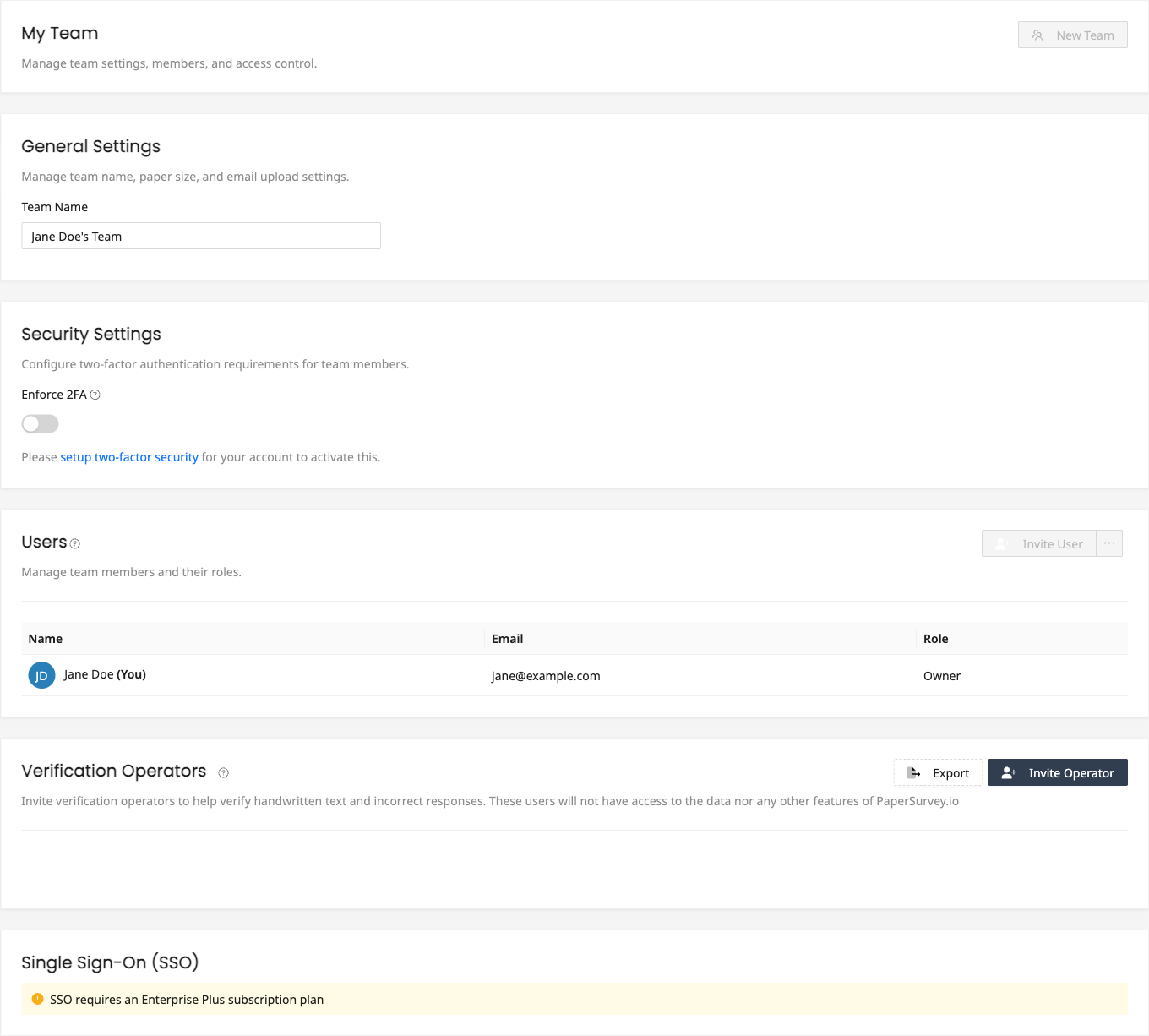
- Go to Settings and open your Team page
- Click New Team
- Enter a name for your team
- Click Create
You are the owner of any team you create. The new team appears in the team selector in the top navigation, where you can switch to it. Only the team owner can create additional teams, and the number of teams you can have depends on your subscription plan.
Switching between teams
If you belong to multiple teams, you can switch between them:
- Click on your current team name in the top navigation
- A dropdown will show all teams you belong to
- Click the team you want to switch to
Your surveys, responses, and settings are separate for each team. Switching teams changes which data you see and work with.
How teams keep data separate
Each team has its own:
- Surveys and survey responses
- Team members and role assignments
- Monthly usage quotas (page uploads and handwriting recognition fields)
- Security settings (such as 2FA enforcement)
- Integration configurations
A team's plan and limits come from the team owner's subscription. Data is never shared between teams unless you explicitly export and import it.
When to use multiple teams
- Separate organizations - If you manage surveys for different companies or clients
- Department isolation - Keep marketing surveys separate from HR surveys
- Testing - Create a test team to experiment without affecting production data
Leaving a team
If you no longer need access to a team, you can leave it. Open the Team page in Settings and click Leave Team next to your own name. Team owners cannot leave a team they own.