When you need to compare results across surveys or build a unified dataset, exporting each survey separately and merging them manually can be tedious. PaperSurvey lets you combine data from multiple surveys into a single Excel file, automatically aligning responses based on matching column headers.
The system creates a unified spreadsheet with all responses plus a reference sheet for validating how your data was aligned.
How the Export Works
Data alignment
PaperSurvey groups responses by matching Export Column Headers or Question Labels. For columns to merge correctly, the headers must be identical across all selected surveys. Any differences in wording will result in separate columns.
Answer matching for multiple-choice questions
Single-choice and multiple-choice answers match by numeric values rather than label text. This means different option labels with the same underlying values will align properly, ensuring consistent data representation.
Reference sheet validation
Every export includes a Reference sheet that maps option labels to their numeric values. You can use this sheet to verify alignment and adjust any recoded values if needed.
Step-by-Step Instructions
1. Access the export tool
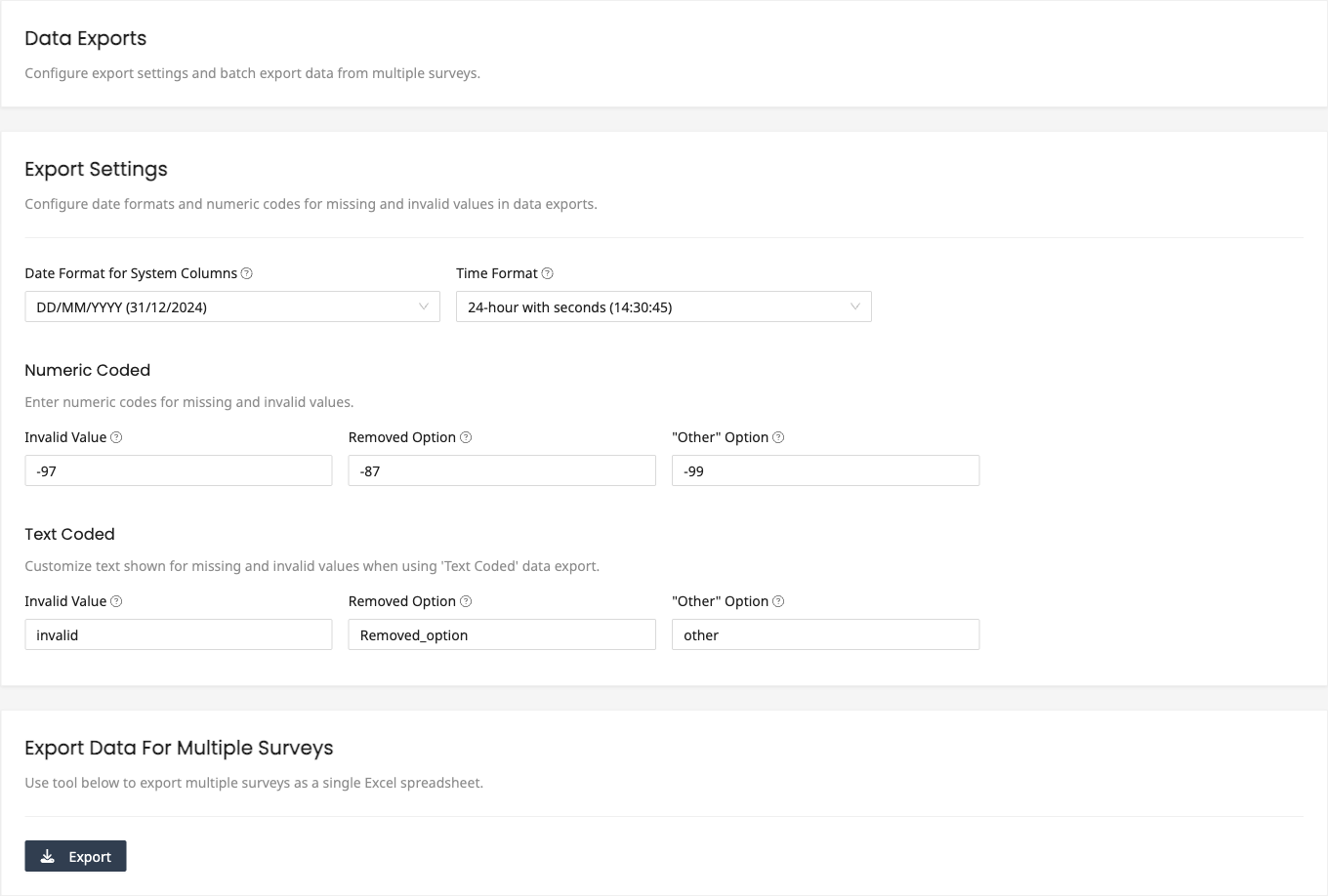
Navigate to your account settings at https://www.papersurvey.io/app/settings/tools, find the "Export Data For Multiple Surveys" section, and click "Export".
2. Select surveys to combine
Choose all the surveys you want to include. You can also select whole folders to include every survey inside them. Make sure they share similar question structures for the best results.
3. Verify data consistency
Before exporting, confirm that:
- Column headers match exactly across surveys
- Numeric values for multiple-choice options are consistent
- Any questions that might not align properly have been reviewed
4. Generate the export
Click "Export" to create your consolidated file. The system will process and merge all selected surveys, and the download starts automatically when complete.
5. Review and adjust if needed
Open the Excel file and check the Reference sheet to verify that option mappings are correct. Edit the "Recoded Values" column if adjustments are needed.
Common Use Cases
Research studies
Combine surveys from different time periods or locations, multiple research phases, or various participant groups into a single dataset.
Customer feedback analysis
Aggregate responses from multiple product launches, different customer segments, or seasonal campaigns.
Educational assessments
Consolidate data from multiple classes or courses, different academic terms, or various assessment types.
Getting the Best Results
- Plan ahead: Design surveys with consistent question labels from the start
- Use standard values: Keep numeric codes consistent across surveys
- Document changes: Note any recoding in the Reference sheet
- Test first: Try exporting a small sample before working with full datasets
What to Do if Columns Don't Match
If your surveys have different question labels, export them individually first, then standardize column headers in Excel before combining. Remember that exact matching is required for automatic alignment, so even small differences in wording will create separate columns.
Next Steps
After exporting, you can analyze the combined data in Excel or statistical software, create pivot tables for cross-survey comparisons, and generate unified reports from all responses.
For additional help with data analysis or export issues, contact our support team through the in-app chat.